At DePaul, we use both IP addresses and MAC addresses when performing incident response to computer security violations on the university network. This tutorial is a brief demonstration on the steps required to find your IP and MAC address.
Finding Your IP Address on Windows
Find your IP Address on Windows 10: Using the Control Panel
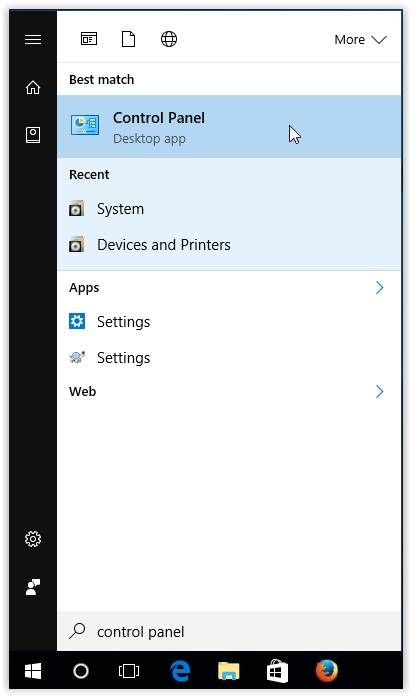
1. Click the Start button, type in control panel, then click the Control Panel icon.
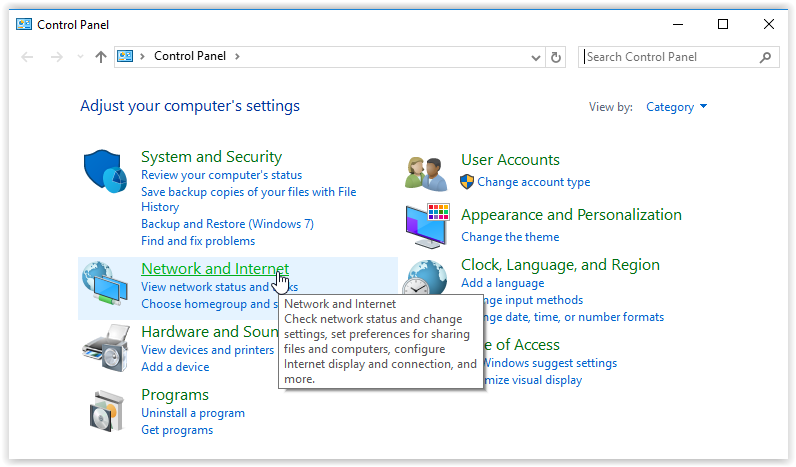
2. Click Network and Internet when the Control Panel opens.
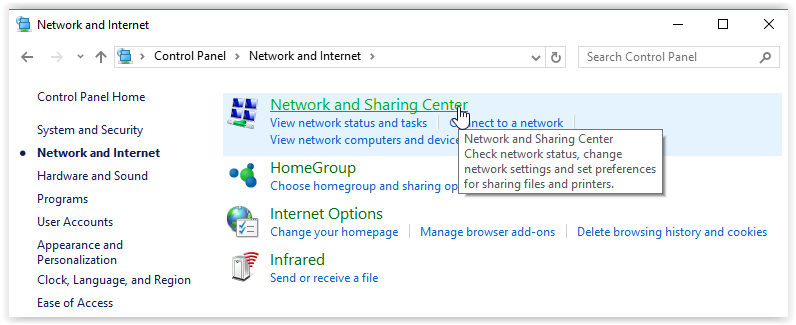
3. Select Network and Sharing Center.
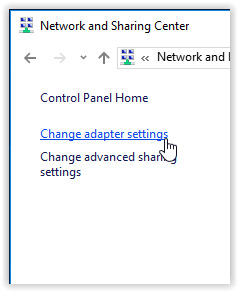
4. Click the Change adapter settings link, located on the left.
5. Double-click on the network you are currently connect to: usually either a WiFi network or Ethernet.
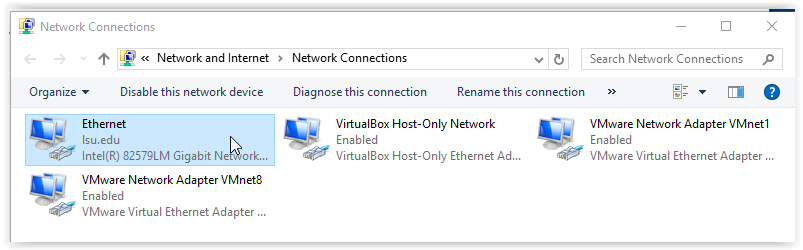
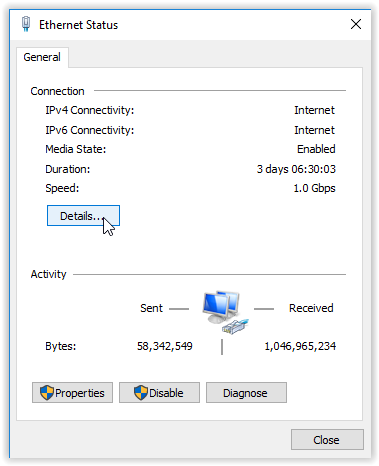
6. Click Details, located under the Connection section for the Local Area Connection Status.
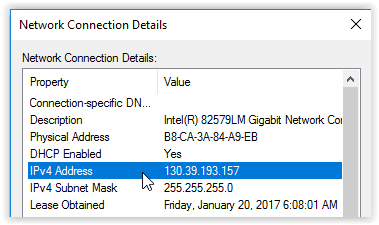
7. Scroll down until you find the IPv4 Address. This is your IP address.
Finding Your IP on MAC OS
1. Begin by clicking the Apple icon on the top tool bar.
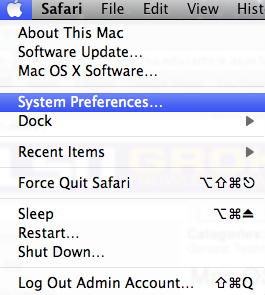
2. Select System Preferences from the menu.
3. In the Internet and Wireless section, select the Network option.
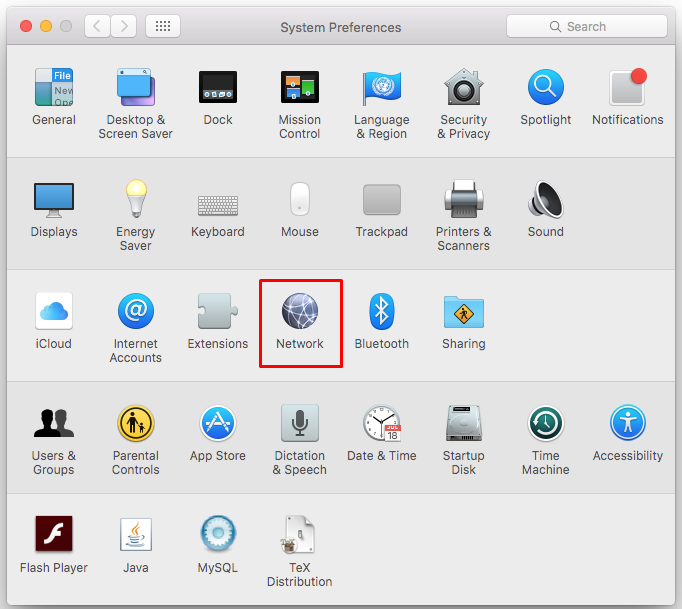
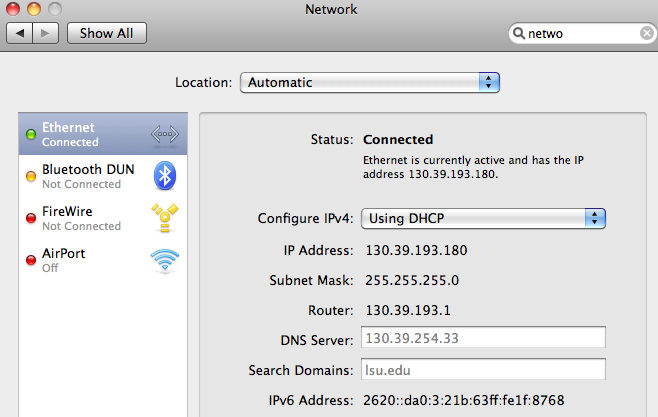
4. When the Network dialog box opens, click on the network that you are connected to, usually a WiFi or Ethernet network. You will find your IP Address displayed on the right side.
Finding Your IP Address on FreeBSD, OpenBSD, Linux and other UNIX Variants
Enter a terminal.
Ensure that /usr/sbin and /sbin are included in your $PATH, then type ifconfig -a. To execute the command using a full path, type /sbin/ifconfig -a or /usr/sbin/ifconfig -a. You will see the following type of output.
secureos$ /sbin/ifconfig -a

lo0: flags=8049 mtu 33224
 inet 127.0.0.1 netmask 0xff000000
 inet6 ::1 prefixlen 128
 inet6 fe80::1%lo0 prefixlen 64 scopeid 0x6
fxp0: flags=8843 mtu 1500
 address: 00:0d:ff:dd:ee:ff
 media: Ethernet autoselect (1000baseTX)
 status: active
 inet 140.192.21.254 netmask 0xffffff80 broadcast
In the above example, the IP address is 140.192.21.254 and the hardware address is 00:0d:ff:dd:ee:ff. Variants of Linux or Solaris may vary; consult your vendors' documentation for more details.
Finding Your IP Address from Behind a Gateway / Router
In some network configurations (such as most home wireless routers), your PC will be behind a gateway or router which will mask your address to the Internet. In this type of case, the above instructions will give you your "private" or internal network address.
If you need to find the external (or public) IP address, use your web browser to go to https://www.whatismyip.com.